Get a document signed in person
Updated October 28, 2026
What you need
- A Pro or Teams plan.
- A document ready to send, with the signer's fields placed.
- The signer's name and email address.
Sign in person, step by step
Mark the signer as signing in person
Click Send document in the editor. Next to the signer, open the ⋯ menu and choose Sign in person. A Signs in person tag appears under them. Enter their name and email: the name is required for an in-person signer, and the email is where their signed copy goes.
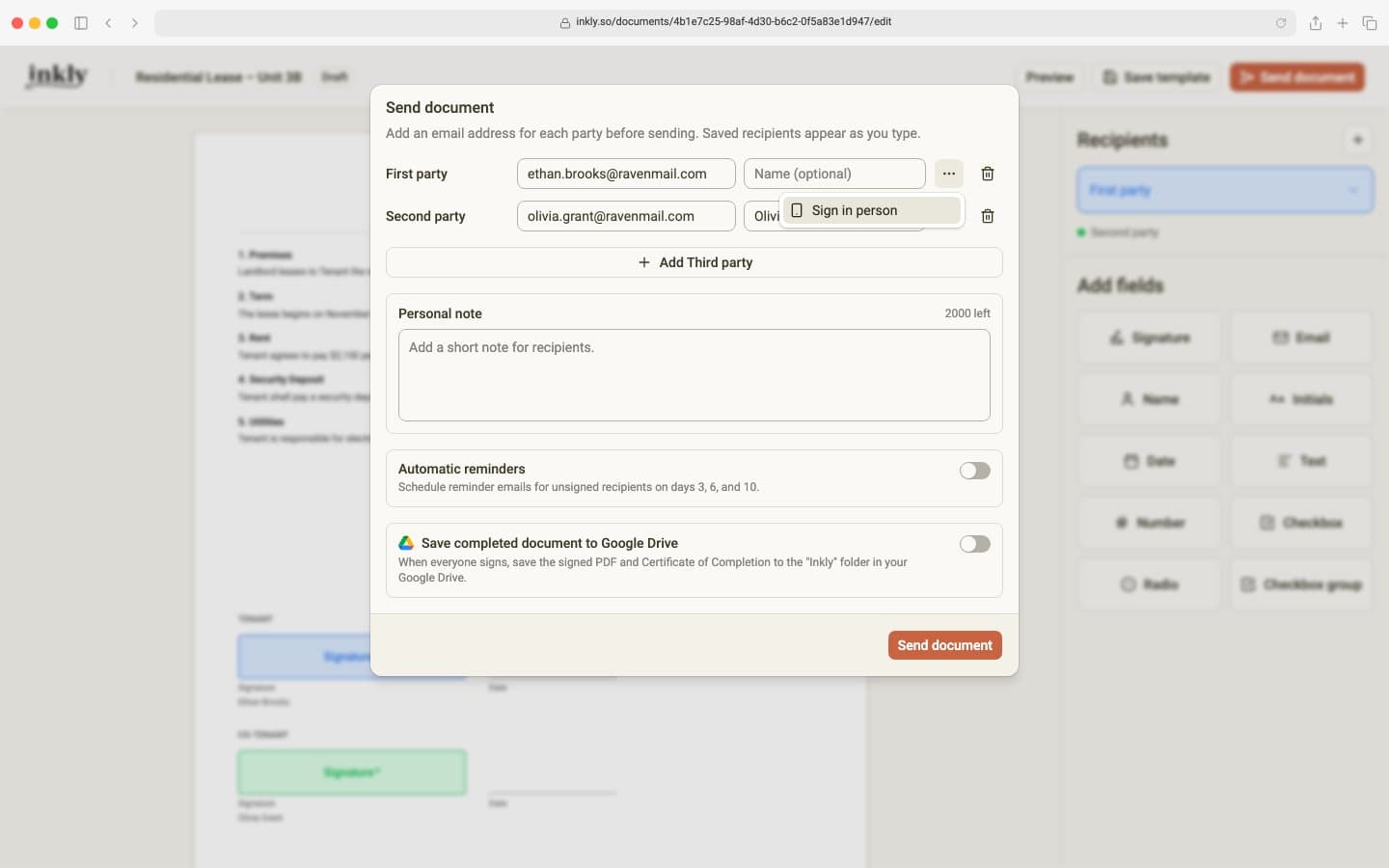
Send the document
Click Send document. Inkly sends no invite or reminders to an in-person signer. Anyone else on the document is emailed as usual. Instead of returning to the document, you land on the in-person screen for the signer whose turn it is.
Let them choose how to sign
The screen tells the signer it's their turn and gives them two ways to sign. To sign on your device, hand it to them and they tap I'm [name]. Sign on this device. To sign on their own phone, they scan the QR code below the button with their phone's camera.
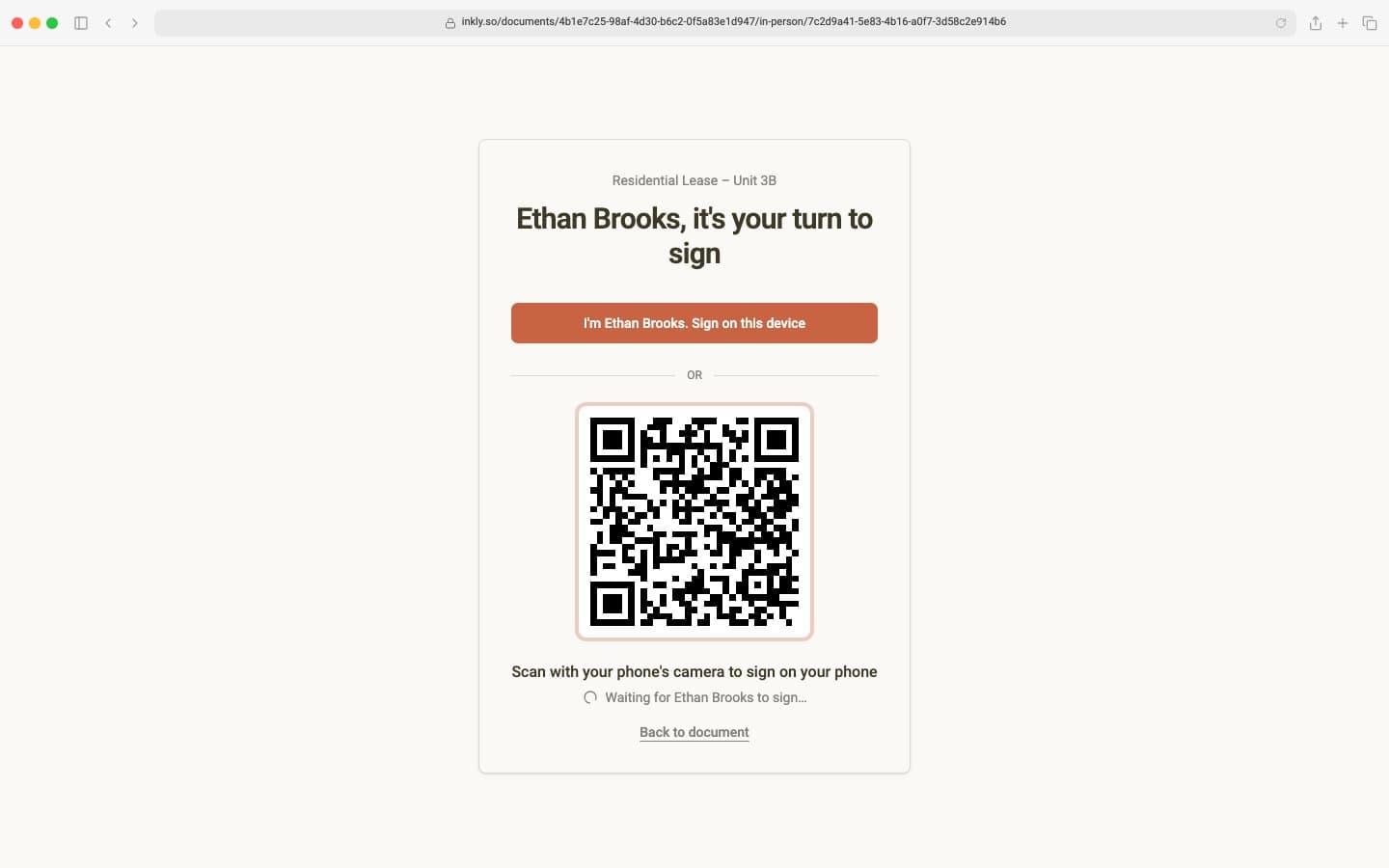
Signing on your device
The signing page opens on your device and shows that they're signing in person with you. When they finish, a thank-you screen asks them to hand the device back. Tap Continue. If another signer is signing in person, Inkly moves on to them; otherwise you return to the document.
Signing on their phone
Scanning the code opens a short page on their phone with one button, Open document. Tapping it opens the normal signing page, the same one an emailed signer gets. When they finish, they see the usual confirmation and can download their copy there.
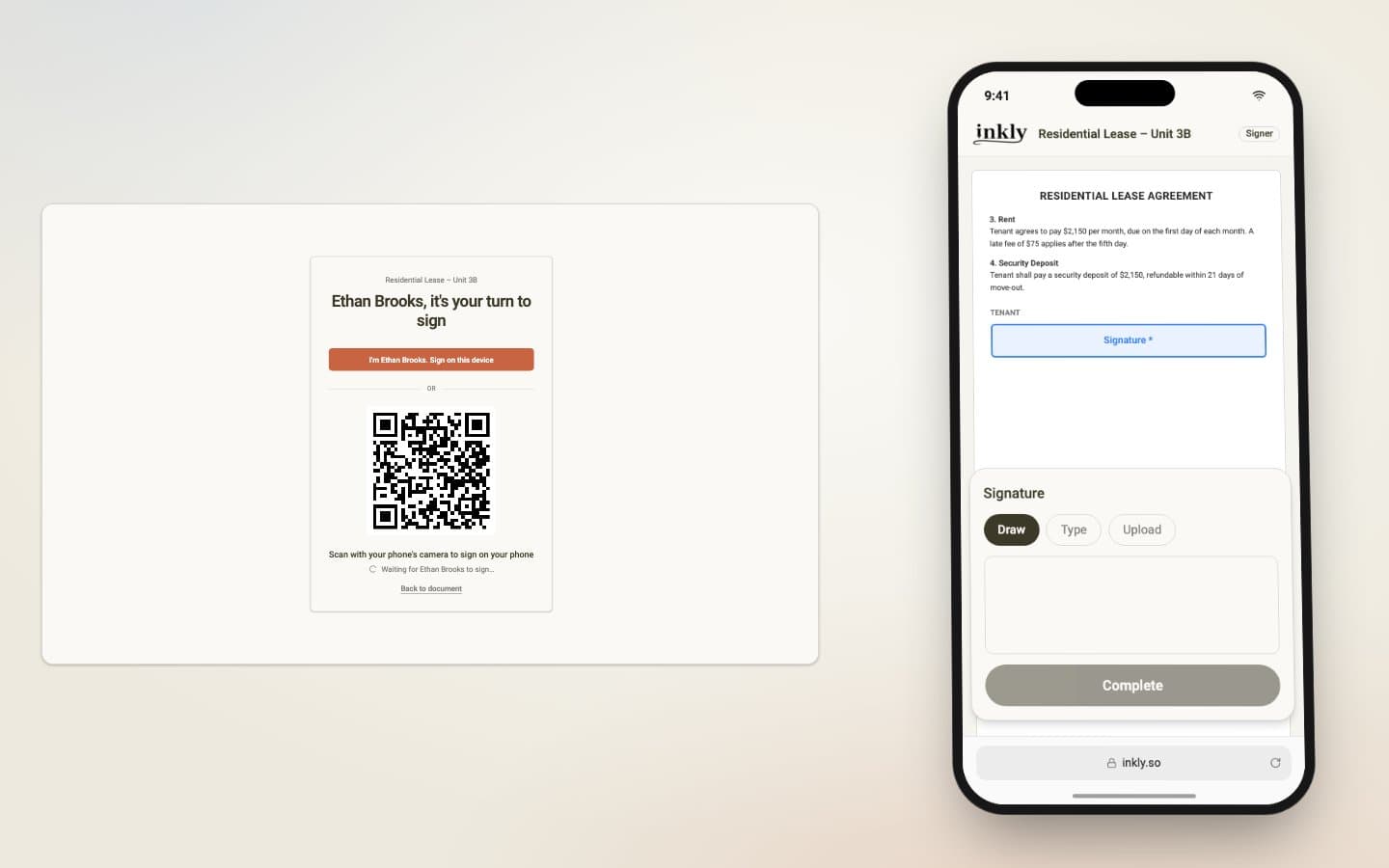
Your screen checks every few seconds and moves on by itself once they've signed, so you don't need to touch it.
What the record shows
Starting a session records your name, the time, and your device's IP address in the document's activity. The Certificate of Completion adds a Signing method line for that signer, such as In person, hosted by Maya Chen, with the time the session started. When a signer opens the document from the QR code, the activity also records that they opened it on their own phone, with that phone's IP address.
New to sending? Start with how to send a document for signature.