Create a reusable template
Updated October 7, 2026
What you need
- A Pro or Teams plan.
- The PDF you send most often, such as a lease, NDA, or offer letter.
Create a template, step by step
Upload the PDF
Open Templates and click Create template, then choose your PDF. It opens in the editor, the same one you use to send a document.
Place fields for each signer role
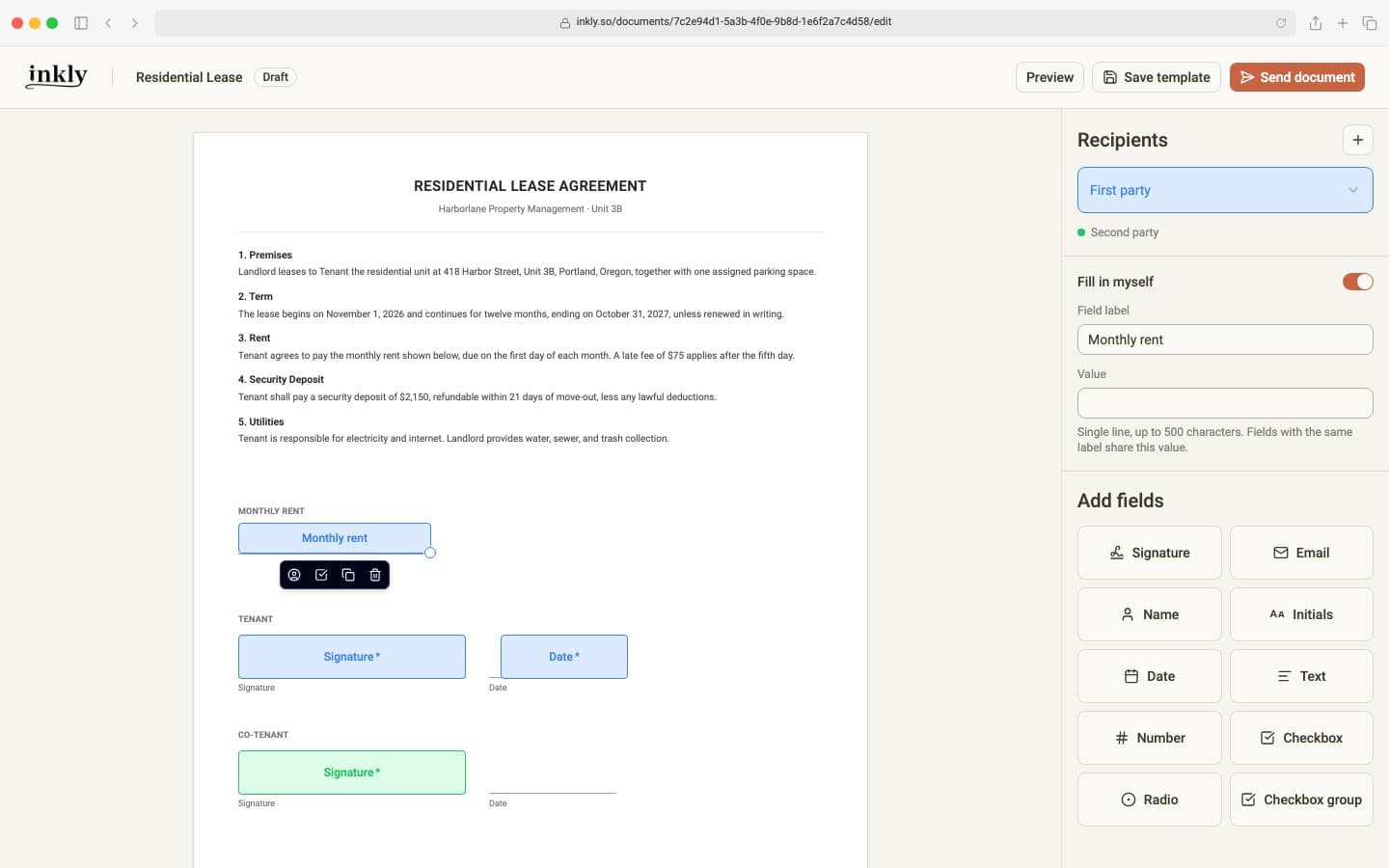
Place fields for the First party. To add the next party, open the signer list under Recipients and choose Add Second party, or click + beside Recipients, then place theirs. Parties are roles, not people: you don't enter anyone's email in a template, because that happens each time you send it.
Fields work the same as when you send a document: drag the bottom-right corner to resize one, and click a field to change its signer, make it required or optional, duplicate it, or delete it.
Add Fill in myself fields for details that change
For something that changes every time, like a rent amount or a start date, place a Text field, select it, and turn on Fill in myself. Give it a clear Field label, such as Monthly rent. You type the value each time you use the template, and signers see it filled in rather than as a box to complete. If the rent appears in two places on the page, give both fields the label Monthly rent and you only type it once.
Save it
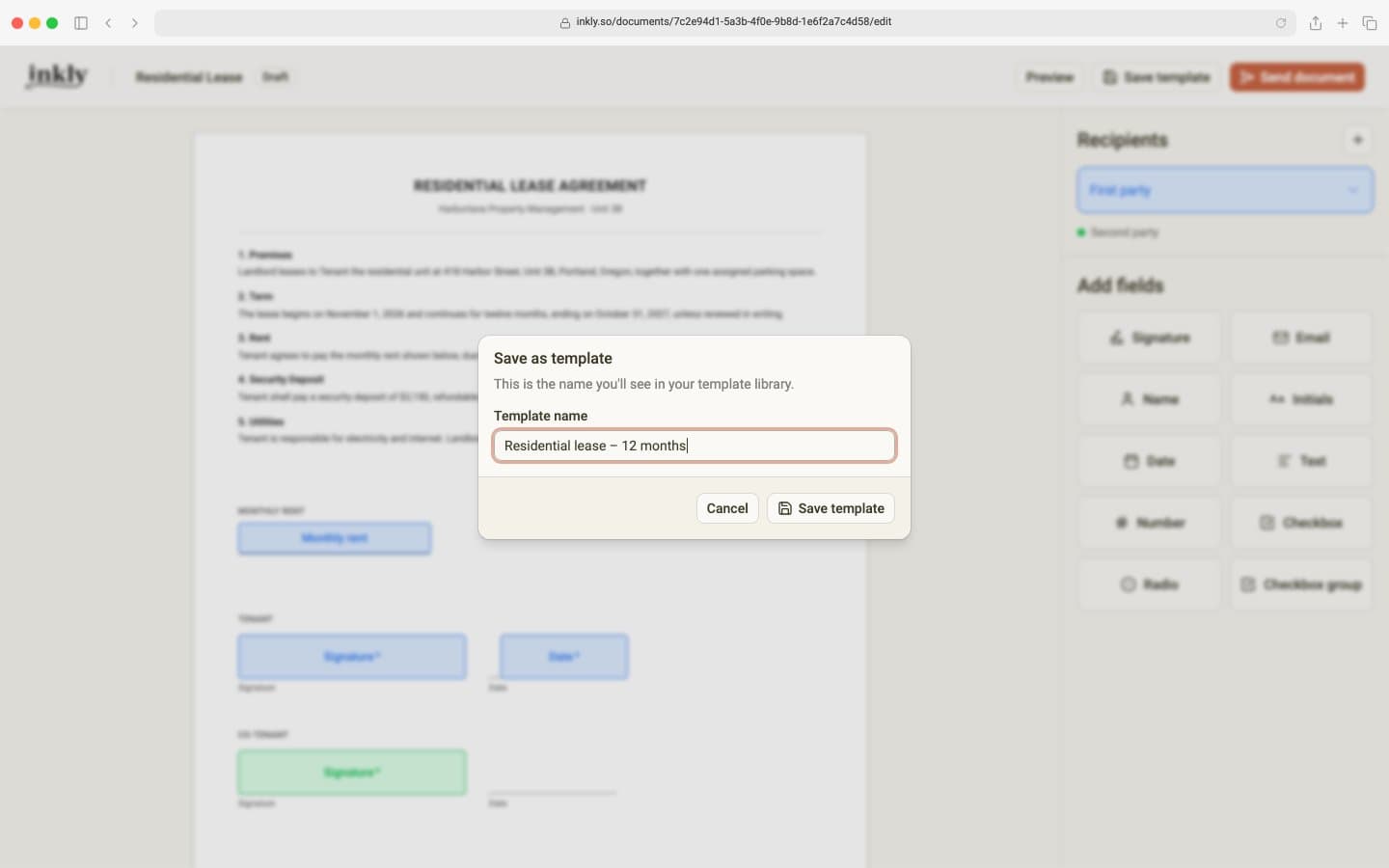
Click Save template at the top of the editor, give the template a name you'll recognize, and click Save template. It appears at the top of your Templates library.
Use your template
On Templates, click Use template. A new draft opens with every field already in place, so all that's left is to fill in any Fill in myself values, click Send document, and enter who is signing.
To send the same template to a whole list of people at once, each with their own copy, see how to send documents in bulk.