Use Inkly from Claude or ChatGPT
What you need
- An Inkly account on any plan.
- Claude or ChatGPT on a plan that lets you add connectors.
Connect Claude
In Claude, open Customize, then Connectors, then Discover
Search for Inkly, open it, and click Connect

Approve the connection in Inkly
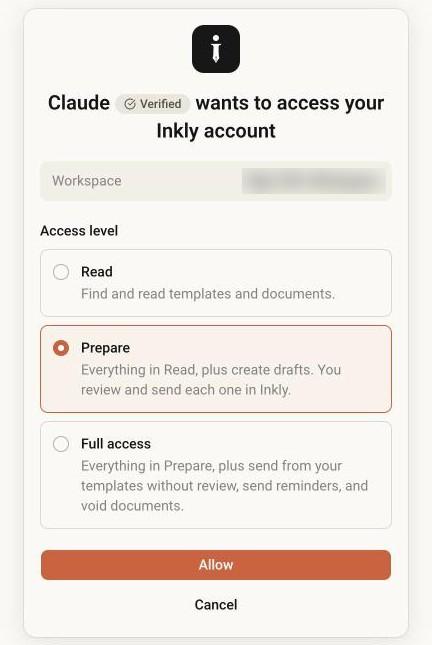
Sign in if Inkly asks you to, then choose a workspace and an access level and click Allow.
Can't find Inkly in Discover? Add it with its URL instead:
Copy the Inkly URL
You can also copy it from Settings → Integrations.
Inkly MCP URLhttps://www.inkly.so/mcpIn Claude, open Customize, then Connectors
Click Add, then Add custom connector.
Name it Inkly and paste the URL
Click Add, then Connect, and approve the connection in Inkly.
Connect ChatGPT
In ChatGPT on the web, open Plugins
Click Add, then Add custom MCP server.
Name it Inkly and paste the URL above
Keep Authentication on OAuth, tick the warning, and click Create as a plugin.
Approve the connection in Inkly
Choose a workspace and an access level and click Allow.
Connect Claude Code or Codex
Run the command for your app in a terminal
Claude Codeclaude mcp add --transport http inkly https://www.inkly.so/mcpCodexcodex mcp add inkly --url https://www.inkly.so/mcpApprove the connection in Inkly
In Claude Code, run /mcp and choose Inkly first. Codex opens your browser on its own.
Using n8n or your own agent? See the AI agents docs.
Choose what it can do
Each level includes the one before it:
- Read: Find and read templates and documents.
- Prepare: Everything in Read, plus create drafts. You review and send each one in Inkly.
- Full access: Everything in Prepare, plus send from your templates without review, send reminders, and void documents.
Prepare is the default. Full access needs Pro or Teams. Change the level any time in Settings → Integrations.
Ask it to do things
Write what you want in your own words. For example:
- “Send the NDA to Sarah Chen at sarah@brightpath.co.”
- “Who hasn't signed the Acme contract yet?”
- “Remind them.”
- “I need to sign it too.”
- “Get me the signed PDF of the lease for 12 Oak Street.”
Check and send what it prepares
Open the link your assistant gives you
It shows the document and who it goes to. Nothing is sent yet.
Click Send document
To change something first, click Open in editor.
Let it send without review
On Pro or Teams, set the connection to Full access in Settings → Integrations. Your assistant can then send, remind, and void documents from the chat. Documents it sends get automatic reminders unless you ask it not to.
Sign your own part
Ask “I need to sign it too.” Your assistant gives you a link to sign. It works when you're signed in to Inkly and it's your turn.
Disconnect
In Settings → Integrations, click Disconnect next to the app. It stops working right away.