Add radio buttons
Updated October 7, 2026
What you need
- An Inkly account. It's free to sign up.
- A document open in the editor.
Add radio buttons, step by step
Place the first option
Under Recipients, select the signer who should answer. Click Radio under Add fields, then click the page where the first option goes. A new Radio group opens in the side panel with two options: the one you just placed, and a second waiting to be placed.
Name the group and label each option
Click the group's name, such as Radio group 1, to rename it after the question, like Medical coverage. Signers see this name above the options. Then type a label for each option, like Employee only.
Place the other options
Click the + inside an option that isn't placed yet, then click the page where it goes. Click Add option for more choices and place each the same way. Until every option is placed, the panel shows how many still need placing.
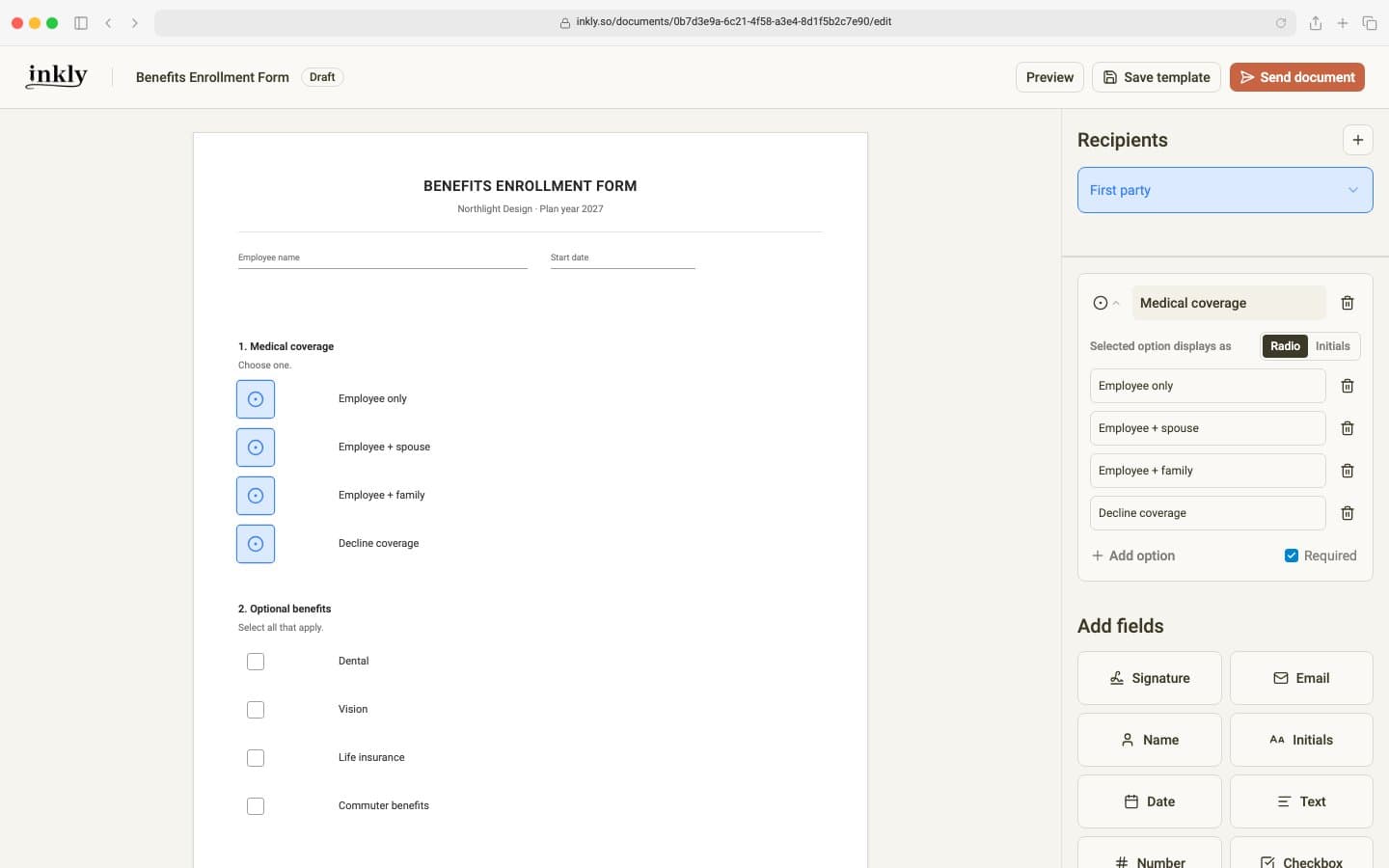
Choose how the selected option displays
Next to Selected option displays as, choose Radio or Initials. The difference is explained below.
Decide whether an answer is required
New groups are Required, so the signer must choose an option before finishing. Untick Required to make the question optional; signers can then clear their choice.
Radio or Initials: which to use
Both settings work the same way for the signer: they can pick only one option. The difference is how that choice appears on the page and on the signed PDF.
Radio
The chosen option is marked with a filled circle. Use it for everyday choices, like a preferred contact method, a shirt size, or a payment schedule.
Initials
Instead of clicking a circle, the signer draws or types their initials on the option they choose. Use it when a choice needs a clear acknowledgment, like accepting or declining coverage, or opting in or out of a term.
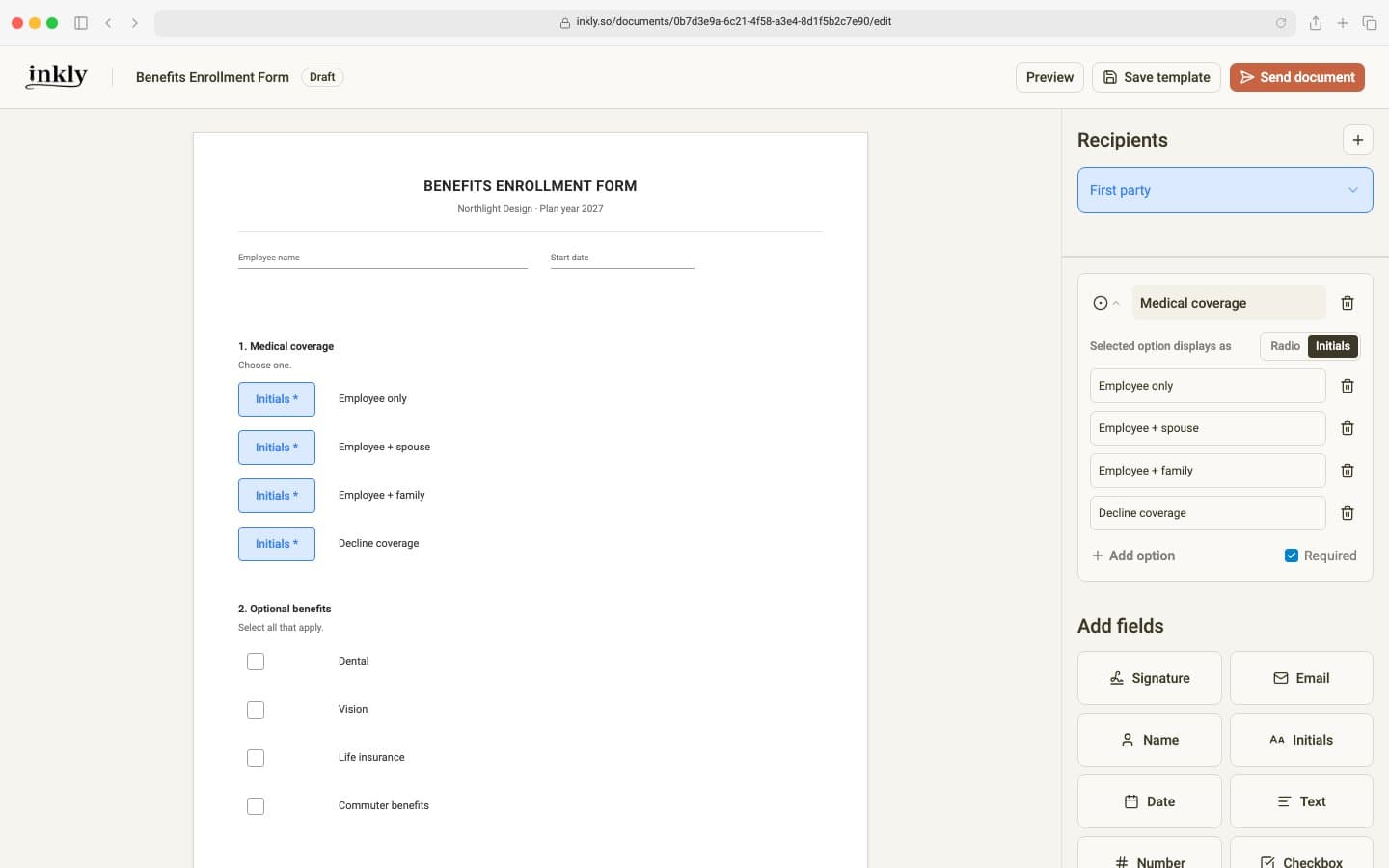
What your signer sees
When the signer reaches the question, Inkly shows the group's name with every option as a button they can tap, on a phone or a computer, and they can also choose right on the page. With the Initials mark, choosing an option asks for their initials, which they can draw or type, and those initials are placed on that option. Inkly remembers them, so changing their mind moves the same initials to the new choice.
Need an answer where more than one option can apply? See how to add a checkbox group.